Building a console display setup with an HDMI adapter
October 28, 2026 Share LinkFor an original Nintendo Switch in TV mode, XREAL 1S is a display option to shortlist with a powered dock and an active HDMI-source-to-USB-C-display adapter. The Switch's documented TV output tops out at 1920 × 1080 at 60 fps; 120Hz glasses do not raise that limit. Buy only after the adapter supplier confirms the exact Switch model, 1S display and power arrangement. A normal USB-C-to-HDMI laptop cable is the reverse signal direction.
Trace the signal in one direction
The general route is: supported console video output, an active powered HDMI-to-USB-C video adapter, and compatible glasses. A dock may be needed to expose the console's video output. The adapter must be designed to receive HDMI and drive a USB-C display; matching socket shapes do not establish that capability.
| Component | What it must provide | Common mistake |
|---|---|---|
| Console or dock | A supported external video output | Assuming a charging socket automatically carries video |
| Active adapter | Conversion from HDMI source to USB-C display | Buying the reverse-direction cable |
| Power connection | The adapter's required power | Assuming HDMI supplies the whole setup |
| Glasses | A supported video mode | Expecting a higher display refresh limit to change the console output |
XREAL 1S specifications
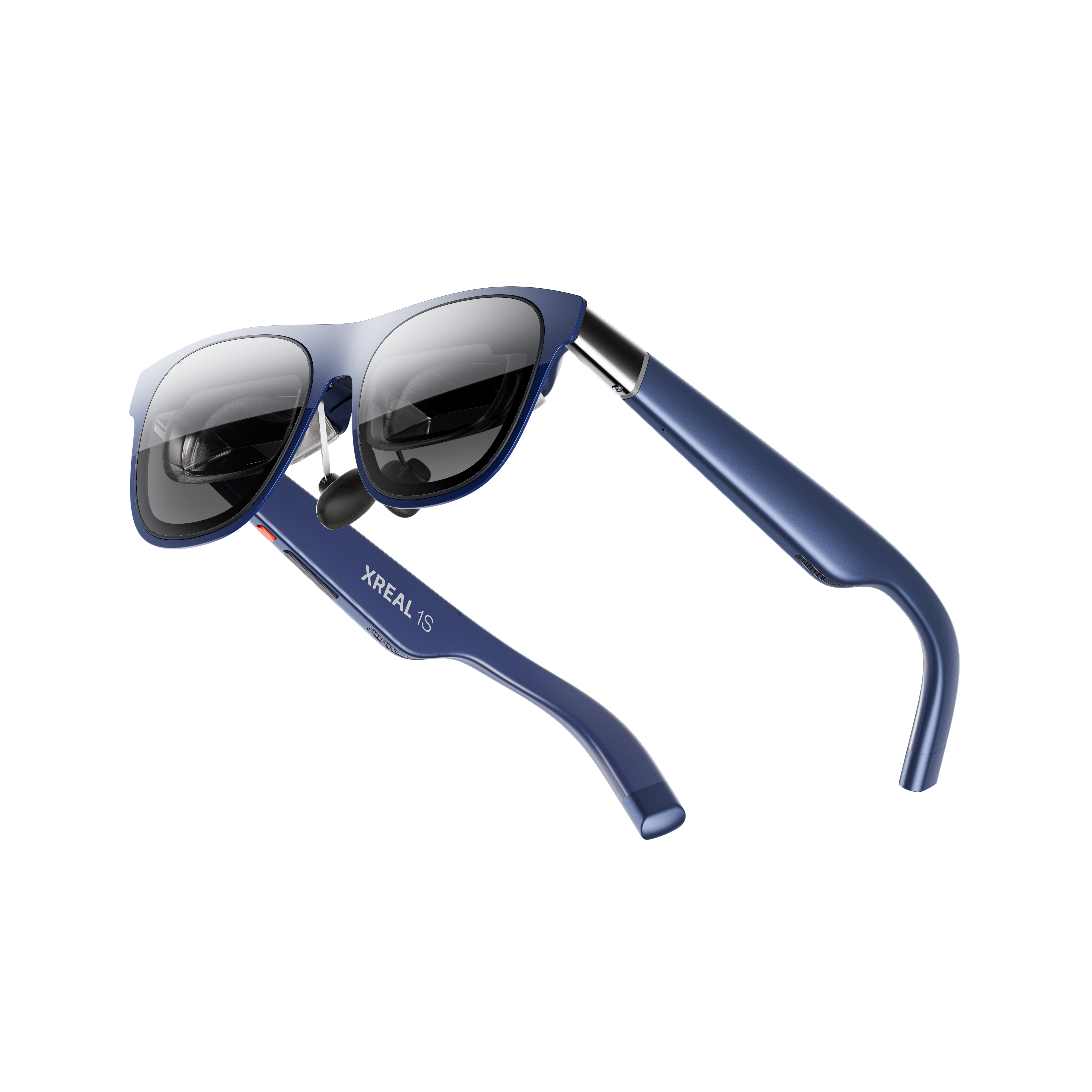
XREAL 1S. Image: XREAL.
| XREAL 1S parameter | Published specification |
|---|---|
| Glasses weight | 82g excluding cable |
| Display resolution | 1200P, as advertised on the UK product page |
| Field of view | 52° as specified by XREAL |
| Refresh rate | Up to 120Hz; requires a supported source mode |
| Spatial display | X1 processing with native 3DoF |
| Input | Compatible USB-C video; some sources require powered adapters |
Official specifications and product information.
The official UK 1S page is the place to check product details and connection guidance. Confirm any recommended accessory against the specific console rather than transferring compatibility claims from a different XREAL model.
Nintendo Switch output is a separate constraint
Nintendo Switch. Image: Nintendo.
| Nintendo Switch parameter | Published specification |
|---|---|
| Model scope | Original Nintendo Switch, not another generation |
| TV output | HDMI through a supported dock |
| Maximum TV output | 1920 × 1080 at 60 fps |
| Console USB-C terminal | Charging or connection to the dock |
| Glasses connection | Confirm the supported dock, active adapter and power arrangement |
Official specifications and product information.
For the original Nintendo Switch, Nintendo's UK specification states that TV-mode output is through HDMI, with a maximum of 1920 × 1080 at 60 fps. Its USB-C terminal is described for charging or connecting to the dock. This does not establish a universal direct cable route to display glasses.
Do not extend these specifications to another console generation or assume every model in a console family has the same TV output. Ask the adapter supplier to identify the exact supported console model, dock arrangement, power supply and display mode.
Assemble and test before travel
First connect the supported console and dock to a normal display to establish that the HDMI output works. Then build the glasses route with the adapter powered as documented. Check the image, audio, menus and reconnect behaviour before packing it away.
If there is no image, check signal direction, power and the selected source mode before buying another cable. Changing several components at once makes it harder to identify the missing requirement. A display advertised up to 120Hz does not turn a 60 fps console output into a higher-rate signal.
A portable monitor can be the simpler choice if it accepts the console output directly and you have somewhere to put it. Glasses are useful when a personal view and reduced physical screen space justify the accessory chain. Compare the complete setup cost and power needs.
Ask for an adapter specification that proves the whole route
XREAL's One-series connection guide includes the 1S family and describes an HDMI-to-USB-C route for HDMI consoles. The guide identifies the connection class; it does not certify every cable with those plugs. Ask the supplier to confirm these four items in writing:
| Item | Required confirmation |
|---|---|
| Direction | HDMI console/dock is the input; USB-C glasses are the display output |
| Display | XREAL 1S is named, including supported firmware or mode if relevant |
| Power | The necessary USB power input and console/dock power supply are specified |
| Mode and audio | Original Switch TV output at 1080p/60 and the intended audio path are supported |
For the original Switch, assemble: powered console dock → HDMI cable → active, powered HDMI-to-USB-C display adapter → 1S glasses. First prove the dock's HDMI output on a normal screen; then power the converter and attach the glasses. Check menus, gameplay and sound after a reconnect. Do not infer this route for Switch Lite or another generation from the original Switch specification.
No particular converter is claimed to have passed an end-to-end 1S test for this guide. If a seller cannot document the route, a portable HDMI monitor or a confirmed supported alternative is a better purchase than an unverified cable chain. The 1S UK purchase page remains the next step for checking the display and asking for current accessory guidance.
FAQ
Can I reverse a USB-C-to-HDMI cable?
Usually not. A cable intended for a USB-C source and HDMI television is not the same as an active adapter accepting HDMI and driving USB-C glasses. Check the specified direction.
Do 120Hz glasses make a 60 fps console output run at 120 fps?
No. The source output and game's rendering remain their own limits. Choose a display mode supported across the complete chain.
Does one console's compatibility prove support for another model?
No. Confirm the exact hardware generation, output path and powered accessory combination. Do not infer compatibility from the connector alone.