






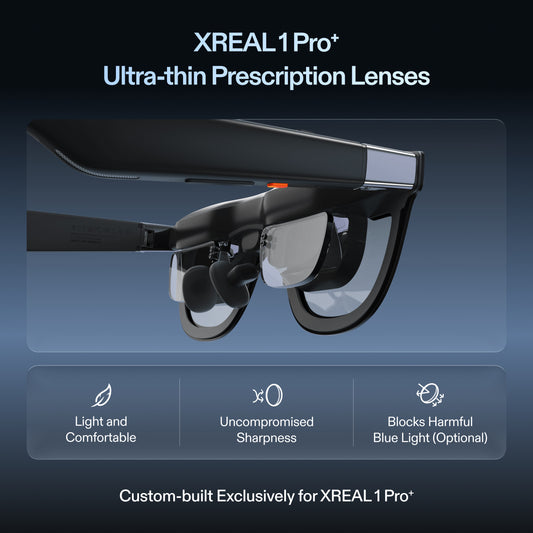




Matching gaming glasses to a handheld video output
XREAL 1S is a practical shortlist option for a handheld that provides compatible DisplayPort video over USB-C: it offers a 1200P view and up to 120Hz, with the actual output mode set by the handheld and game. For Steam Deck, the manufacturer's external-display specification provides a documented starting point. For an HDMI console, budget for the powered conversion path instead of assuming a direct USB-C cable will work.
Identify the connection before choosing the glasses
| Source type | Expected connection path | Check first |
|---|---|---|
| USB-C handheld with video output | Supported USB-C video cable to glasses | DisplayPort Alt Mode and sufficient power |
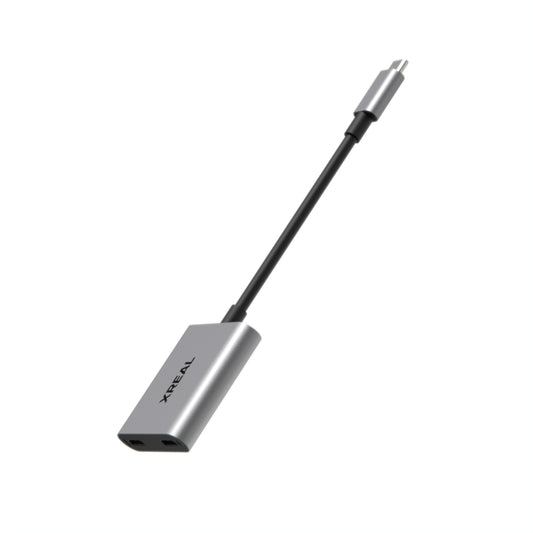
| Handheld using a dock's HDMI output | Dock, powered HDMI-to-USB-C video adapter and glasses | Adapter direction, display support and power |
| Handheld with no supported external video | No assumed direct display route | Manufacturer confirmation before buying accessories |
An ordinary charging cable may have no video capability. Likewise, a USB-C-to-HDMI cable designed for a laptop driving a television usually cannot be reversed to feed glasses from an HDMI source. Match the direction of the signal rather than the shape of the sockets.
XREAL 1S specifications for the shortlist
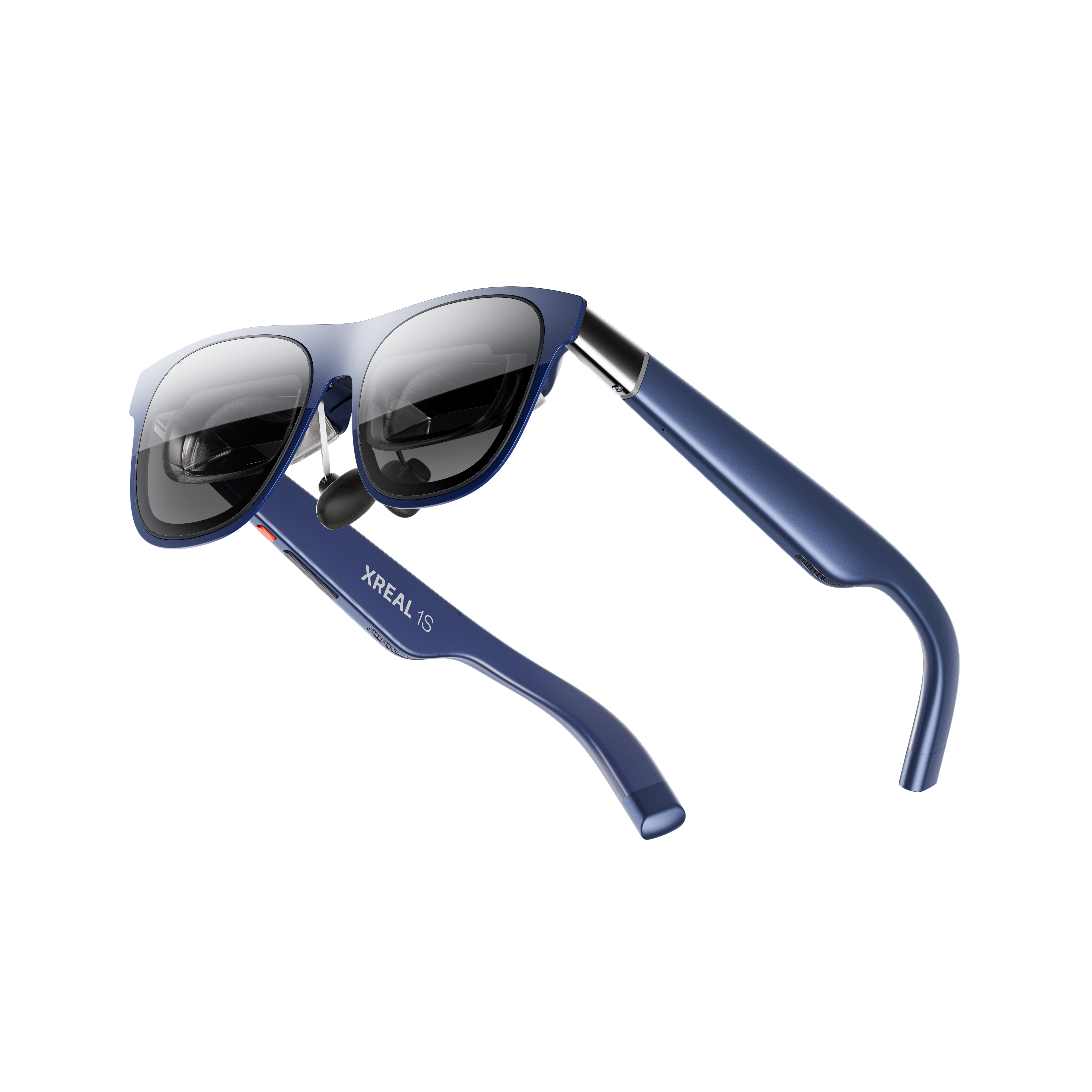
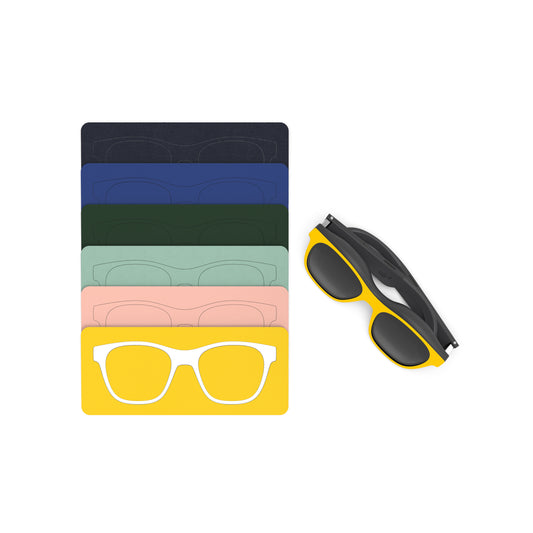
XREAL 1S. Image: XREAL.
| XREAL 1S parameter | Published specification |
|---|---|
| Glasses weight | 82g excluding cable |
| Display resolution | 1200P, as advertised on the UK product page |
| Field of view | 52° as specified by XREAL |
| Refresh rate | Up to 120Hz; requires a supported source mode |
| Spatial display | X1 processing with native 3DoF |
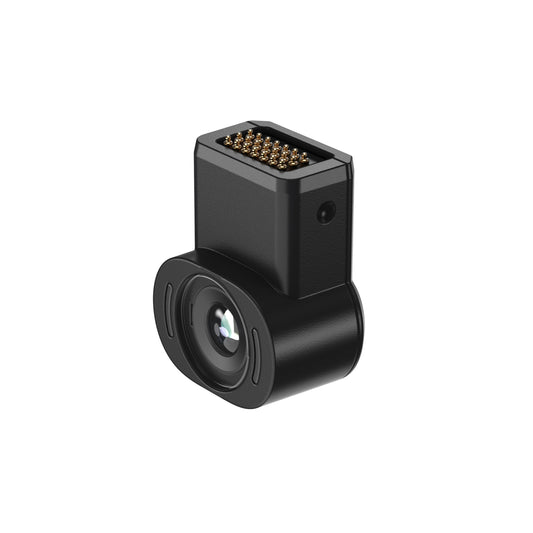
| Input | Compatible USB-C video; some sources require powered adapters |
Official specifications and product information.
The UK 1S page describes a wearable display with native spatial screen modes. For gaming, the practical question is whether the source exposes the desired resolution and refresh rate through the final connection. Check the host's display settings after connecting.
Understand 120Hz and latency
A display running at 120Hz refreshes up to 120 times per second. It does not make a game render 120 frames per second. Game settings, hardware performance, power mode, source output and adapters all affect the result. A console limited to a lower output rate stays limited even when attached to a faster display.
Avoid comparing a chip's quoted motion-to-photon processing time with a full system input-lag measurement. Controller input, rendering, conversion and display processing occur at different points in the chain. For competitive games, test the complete setup using the connection and settings you intend to keep.
Glasses or a portable gaming monitor
| Priority | Glasses can suit you when | A physical monitor can suit you when |
|---|---|---|
| Travel | You want a personal screen without placing a panel on a table | You have a stable surface and want easy shared viewing |
| Controls | You can use the controller without looking down frequently | You need to see several physical controls at once |
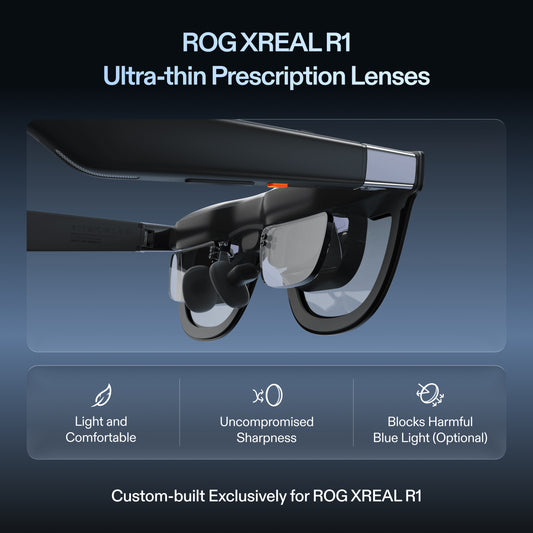
| Picture | The optics fit and the entire HUD stays clear | You prefer a visible panel without prescription inserts |
For long sessions, plan how the handheld will charge while supplying video. A powered hub must support both the required video route and charging behaviour; a generic multiport label is not enough. Test wake, reconnect, audio and game menus at home before relying on the setup away from a desk.
A documented Steam Deck route
| Steam Deck OLED detail | Published by Valve |
|---|---|
| Built-in panel | 1280 × 800, up to 90Hz |
| External display connection | DisplayPort over USB-C; the external-output capability is specified separately from the built-in panel |
| Power adapter | 45W USB-C PD 3.0 |
Valve's Steam Deck specifications distinguish the internal panel from external video. XREAL's One-series connection guide explicitly includes Steam Deck/OLED among supported direct-connection devices. Use the supplied glasses cable, then select a resolution and refresh rate offered by the connected system. Do not infer a game's frame rate from either display's maximum refresh rate.
For a fair gaming check, load the same saved scene, read the HUD at its corners, check audio output and play through a reconnect. If you add charging, verify a video-plus-power accessory for the exact handheld. Compare the final accessory chain with a portable monitor rather than assuming every USB-C hub has the required display output.
FAQ
Does USB-C always mean the handheld can drive glasses?
No. The port must support the relevant video output, and the cable must carry it. Check the exact handheld specification and accessory guidance.
Will 120Hz glasses improve every game?
Only games and source settings that deliver a supported higher refresh output can use it. The display cannot add frames that the game does not render.
Can I charge and play at the same time?
Potentially, with a compatible charging and video accessory. Verify the exact handheld, hub, power supply and glasses combination rather than assuming every USB-C hub will work.